Paste a range
- In your sheet, select the names and the score column, including the header row if you have one, and copy (Ctrl+C or ⌘+C).
- In Gradeshuttle, choose Paste from a spreadsheet or CSV and paste into the box.
- Gradeshuttle shows how many students and score columns it found. Choose the column and check the preview.
- Press Use these grades, then Fill as usual.
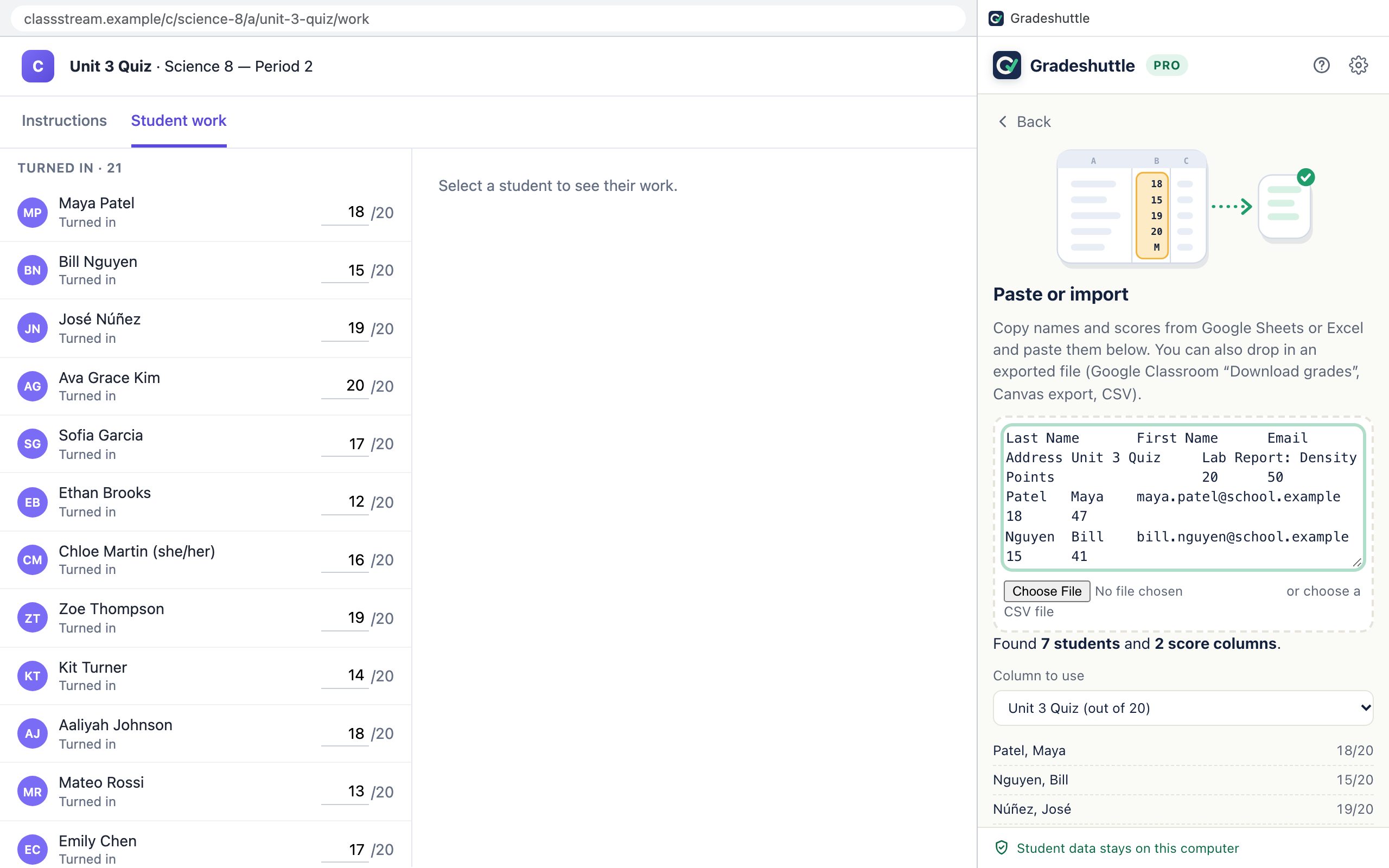
Import a file
Drop a .csv, .tsv or .txt file onto the paste box, or choose it with the file button. Files up to 2 MB.
- Google Classroom “Download these grades as CSV”: the Email and Date rows are ignored and the Points row sets each assignment’s total.
- Canvas gradebook export: the ID, SIS and Section columns are ignored, and “Points Possible” sets totals.
- Most other LMS and quiz-tool exports work if they have a name column and a score column.
Layouts Gradeshuttle understands
| Your sheet looks like | Works? |
|---|---|
| Name | Score | Yes |
| Last | First | Quiz 1 | Quiz 2 … | Yes, then choose the quiz |
| “Last, First” in one column | Yes |
| No header row | Yes (columns are named A, B, C…) |
| Scores like 18/20, 90%, B+, Missing, ✓ | Yes |
| Names only, or scores only | No: Gradeshuttle needs both to match students |