1. Install and pin Gradeshuttle
- Open Gradeshuttle’s page in the Chrome Web Store and click Add to Chrome. [Store link added at launch.]
- Click the puzzle-piece icon in Chrome’s toolbar, then the pin next to Gradeshuttle.
- Click the Gradeshuttle icon, or press Alt+Shift+G. Gradeshuttle opens in the side panel on the right and stays open while you switch tabs.
Right after installing, Gradeshuttle shows a 30-second animated tour of a Google Classroom transfer. You can watch it again any time from the panel (Watch the 30-second tour) or on our home page.
2. Allow site access
The first time, Gradeshuttle shows Allow Gradeshuttle on school websites. Chrome then asks to let it “read and change data on websites”. That’s Chrome’s standard wording for any extension that can type into web pages.
Gradeshuttle only looks at a page when you press Grab or Fill, and only at the column you click. It sends nothing anywhere. You can also limit it to specific sites in chrome://extensions › Gradeshuttle › Site access.
3. Grab a column
- Open the page with your scores, for example Google Classroom’s Grades tab.
- In Gradeshuttle, press Grab.
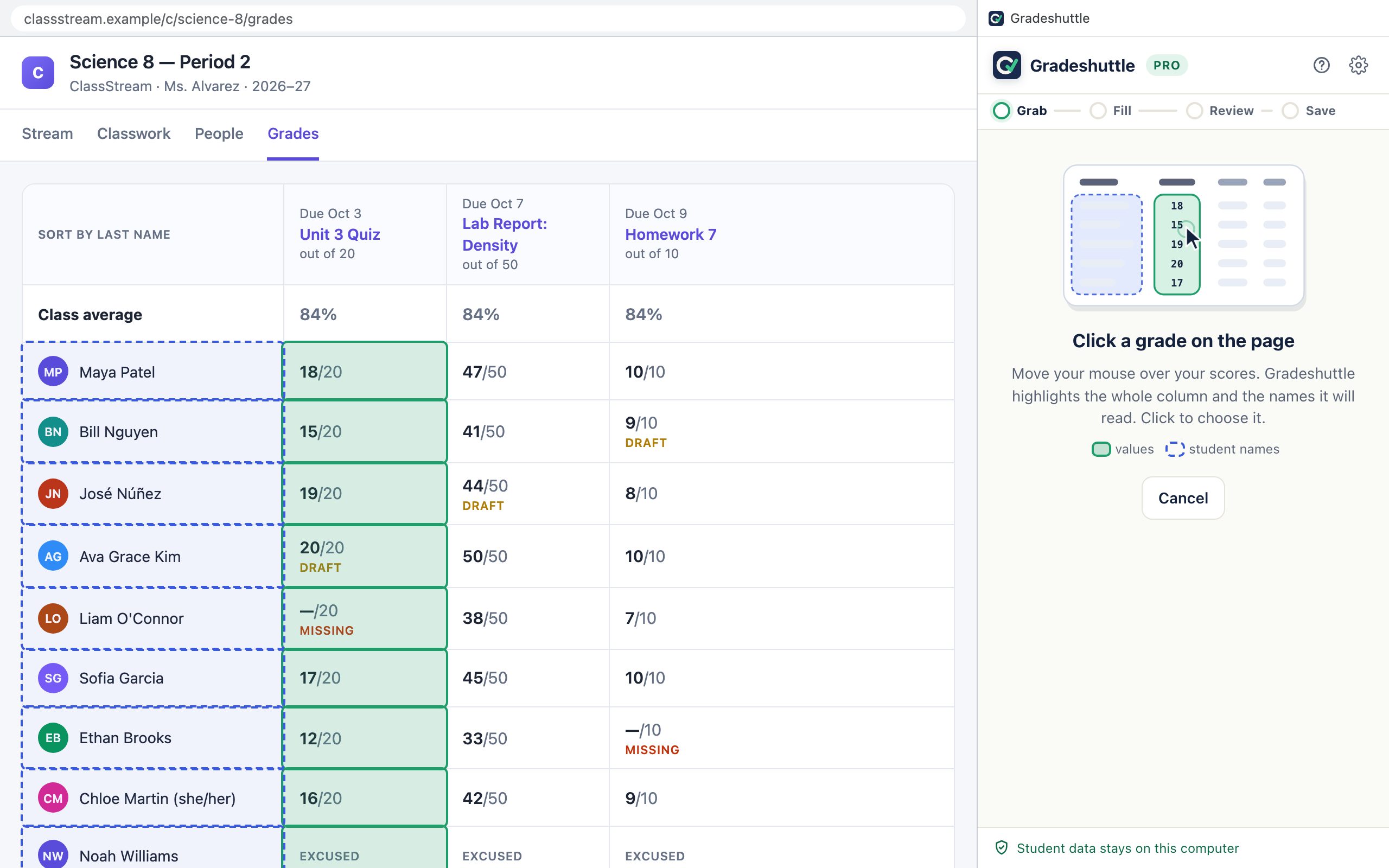
- Move your mouse over the scores. Gradeshuttle highlights the whole column in green and the student names in blue.
- Click any grade in the column you want. Gradeshuttle shows “Ready to fill” with the number of students, scores and Missing marks.
4. Fill your gradebook
- Open your gradebook in any tab and go to the assignment column you want to fill. Create the assignment first if your gradebook needs that.
- Press Fill, then click any cell in that column.
Tip: if you click a gradebook cell first and then press Fill, Gradeshuttle uses that column straight away.
5. Review, then fill
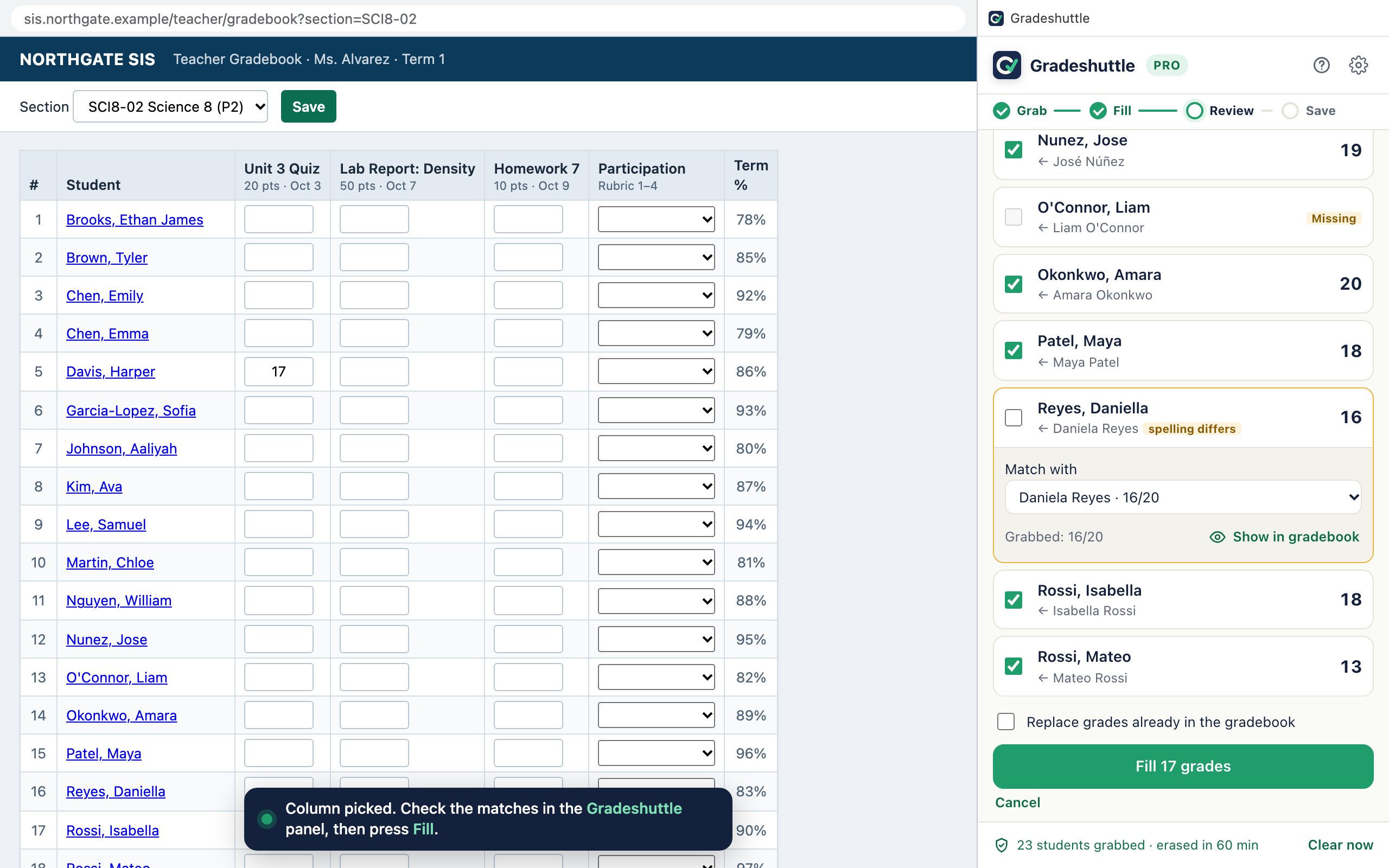
You’ll see every student in the gradebook with the name Gradeshuttle matched, how it matched, and the value it will type.
- Ticked rows will be filled. Unsure matches, such as a spelling difference, start unticked. Tick them if they’re right.
- Cells that already have a grade are kept unless you tick “Replace grades already in the gradebook”.
- Missing and Excused are skipped and flagged, never typed as text.
- Click a row to change who it’s matched with, or to see it in the gradebook.
When it looks right, press Fill N grades.
6. Check and save
Gradeshuttle types each value, checks it on the page, and colours the cells: green typed, grey kept, dashed amber skipped, red no match or couldn’t be confirmed.
Look them over, then press your gradebook’s own Save button. Gradeshuttle never saves for you. Changed your mind? Press Undo this fill.
When you’re done, press Finish & clear data. Grabbed data is also erased automatically after 60 minutes or when you close Chrome.